How to Remove Personal Information and Metadata from a PDF
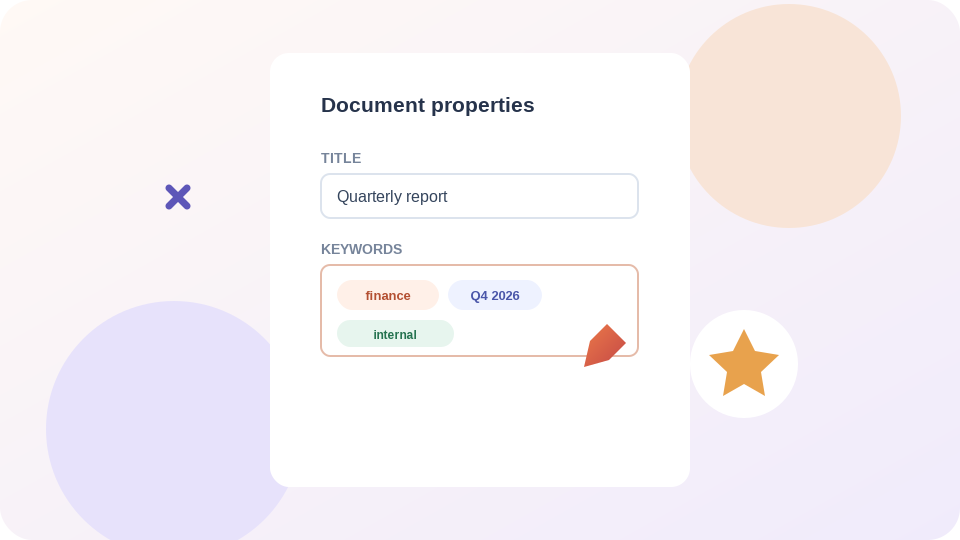
A PDF can reveal more than the words on its pages. Document properties may include an author, title, subject, software name or dates. Comments, attachments, form values and earlier saved content can also carry information. Removing metadata does not hide a name or account number printed visibly on a page.
Inspect the PDF before sharing
- Open PDF Privacy Inspector and select the file.
- Review the report for document properties, earlier revisions, attachments, comments, form fields and other findings.
- Decide which items should be removed. Some content, such as comments or links, may be useful and can be preserved if appropriate.
- Create a clean copy and inspect that copy again before sending it.
Check the visible page content separately
A metadata cleaner does not redact printed text or images. Read every page for names, email addresses, signatures, account numbers, hidden white-on-white text or other content you do not intend to disclose. Use a proper redaction workflow to remove sensitive page content; covering it with a shape or white box may leave it recoverable.
Review document properties
For ordinary metadata such as title, author, subject and keywords, Edit PDF Metadata lets you inspect and change those fields. Clearing properties alone does not remove comments, attachments, revision history or visible personal details, so use the inspector when you need a broader review.
Verify the clean copy
- Open the new file and check that all intended pages remain.
- Inspect the report again and confirm that the selected items are gone.
- Search and visually review the page content for personal information.
- Check that removing comments, links or form fields has not removed something the recipient needs.
Metadata cleanup reduces unintended disclosure but cannot guarantee that every identifying detail has been found. Follow your organization’s document-handling rules for confidential records.
Frequently asked questions
Does removing metadata redact names printed on the PDF?
No. Metadata cleanup affects document properties and other hidden data, not text or images visible on the page. Use a dedicated redaction workflow for page content.
Is clearing the author field enough to clean a PDF?
Not usually. Attachments, comments, earlier revisions, form values and other properties may also contain information. Inspect the document and verify the output.
Should I remove links and form fields too?
Only if they are unnecessary or could disclose information. Removing them may change how the document works, so check the recipient’s needs first.