How to Convert a PDF to Word and Check the Formatting
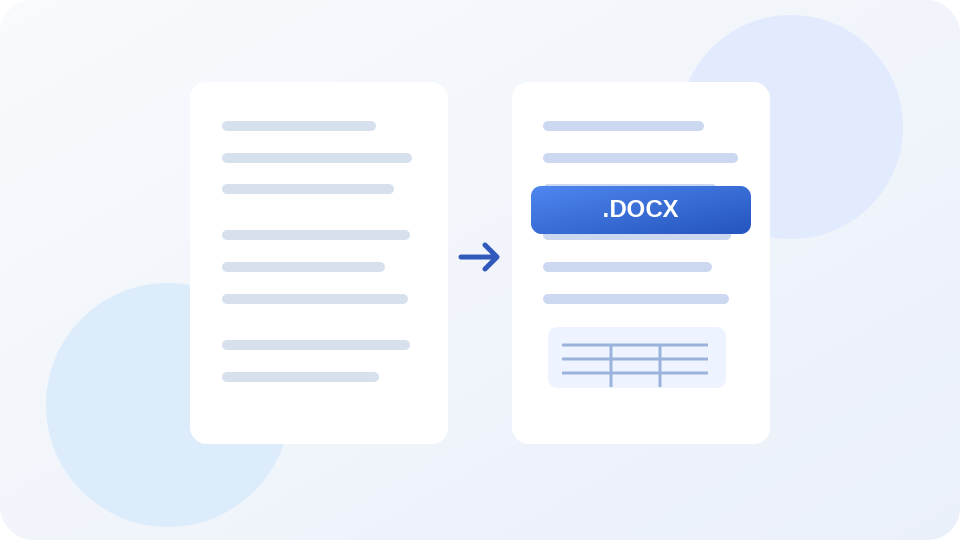
Converting PDF to Word is useful when you need to revise a document, but conversion is not a perfect copy operation. PDFs store positioned page content; Word uses flowing paragraphs and tables. Expect to review page breaks, columns, fonts and tables after conversion, especially for complex layouts.
Open a PDF in Microsoft Word
- Make a copy of the PDF and open Microsoft Word.
- Choose Open and select the PDF. Word will explain that it is converting the file to an editable document.
- Accept the conversion and wait for the document to open. Large or image-heavy PDFs may take longer.
- Use Save As to save a new
.docxfile. Keep the original PDF unchanged.
Convert with Google Docs
- Upload the PDF to Google Drive, subject to your organization’s privacy rules.
- Open the file with Google Docs. The text may be imported into a new document, though tables and page layout can shift.
- Review the content and use Download to save a Word document if you need a
.docxcopy.
Menu names and conversion availability vary by account and software version. Do not upload confidential files to a cloud service unless you are permitted to do so.
If the PDF is scanned
A scan contains page images rather than editable text. Run OCR on the PDF first to recognize its words, or use a Word or document service that explicitly supports OCR during import. Proofread names, numbers, punctuation and columns; OCR mistakes can look plausible.
Review the Word document carefully
- Compare headings, paragraph order, page breaks and page count with the source.
- Check tables, footnotes, headers, columns, bullets, images and special characters.
- Confirm that page numbers and cross-references still point to the right content.
- For contracts or official forms, compare every changed line against the original before editing or distributing the converted copy.
When conversion is not needed
If you only need a small correction, editing the PDF directly may be simpler than converting and rebuilding the layout. Use Edit PDF for a short text change or annotation, then inspect the saved PDF. For substantial rewriting, converting to Word and reviewing the entire document is usually more practical.
Frequently asked questions
Can I convert a scanned PDF to Word?
Yes, but the scan needs OCR to recognize the text first. Proofread the converted document carefully because recognition errors can affect names and numbers.
Will the Word document look exactly like the PDF?
Not always. Word may change fonts, columns, tables, spacing and page breaks. Review the converted file against the original before relying on it.
Can I convert a confidential PDF online?
Only use a service approved for that document. For sensitive files, prefer software and storage permitted by your organization; do not upload them to an unapproved cloud service.