How to Convert a PDF to PNG Images
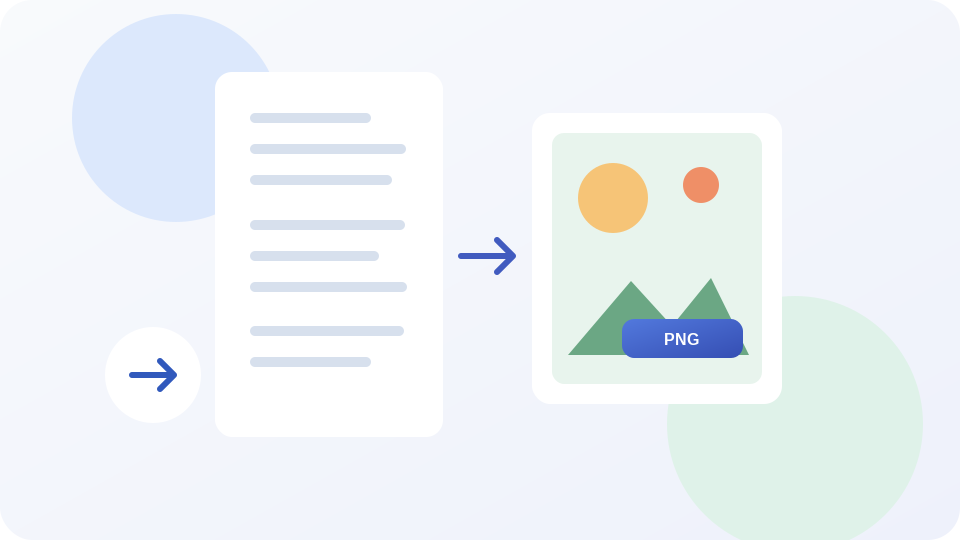
Turning PDF pages into images is useful for sharing a preview, placing a page in a slide deck or publishing a graphic. The output is a picture of each page, not an editable PDF: text will not be selectable in the exported image. This site’s converter exports PNG files, one image per page, bundled in a ZIP.
Convert PDF pages to PNG
- Open PDF to Images and choose your PDF.
- Choose the scale. A smaller scale produces lighter files; a larger scale gives more pixels for zooming or printing.
- Run the conversion and download the ZIP file.
- Extract the ZIP and open a few images. Confirm the page sequence, image dimensions and readability before sharing.
Choose a scale for the job
Use a lower scale for thumbnails or quick previews. Choose a higher scale when small labels need to remain legible or when the image will be cropped. Higher resolution increases both processing time and file size. Test one typical page first if you are unsure, and inspect fine print at the size it will be viewed.
PNG or JPG?
PNG is well suited to sharp text, line art and diagrams because it preserves crisp edges, but photos may take up more space. JPG is often smaller for photographs but uses lossy compression. This tool creates PNG files; if you specifically need JPG, convert the exported PNG using a trusted image app and check that text remains clear.
Know what conversion leaves behind
An image cannot preserve PDF links, form fields, selectable text or accessibility structure. It is not a substitute for the original document. Keep your PDF, and use OCR if a scanned PDF needs searchable text rather than image export.
Frequently asked questions
Does PDF to PNG create one image or one image per page?
It creates a separate PNG for each page and packages the images in a ZIP download.
Can I select text in the PNG images?
No. PNG files are images. Keep the original PDF if you need selectable text, links or form fields.
Why are my PNG images so large?
A high export scale creates more pixels and larger files. Choose a lower scale for screen previews, or export only the resolution you need.