How to Convert JPG or PNG Images to a PDF
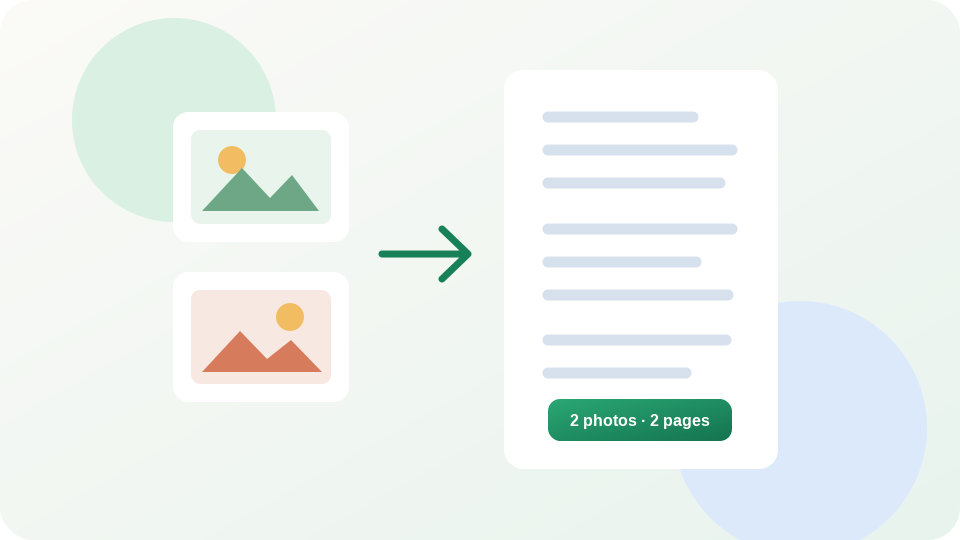
Putting photos or scanned pages into a PDF makes them easier to send as one document. Before converting, choose the right images, set their order, and check that each one is upright and readable. A PDF made from photos contains pictures; it does not automatically make the words searchable.
Make a PDF from JPG or PNG images
- Open Images to PDF and select your JPG, JPEG or PNG files.
- Use the move controls to put the images in the order they should appear. The first image becomes the first PDF page.
- Run the conversion and save the new PDF.
- Open it and check page order, orientation, cropping and legibility before sending it.
Prepare images for a clear result
- Use a sharp, well-lit image. Retake blurry or shadowed photos when possible.
- Rotate sideways pictures before conversion if needed.
- Make sure the full page is inside the image. Cropped edges can remove signatures, labels or page numbers.
- For multi-page documents, use consistent framing and arrange the pages in reading order.
Make a scanned-image PDF searchable
Image-only pages do not contain selectable words. After conversion, you can run OCR on the PDF to add a searchable text layer. Review recognized names and numbers against the original images; OCR can make mistakes, especially on handwriting or low-quality photos.
Keep the file easy to share
Large camera images can create a large PDF. If the result is too big, use Compress PDF on a copy and check that small text remains readable. Keep your original images until you verify the finished document.
Frequently asked questions
Can I combine JPG and PNG files in one PDF?
Yes. Select JPG, JPEG and PNG images together, then arrange the list in the order you want.
Will text in the pictures be searchable?
Not automatically. Run OCR on the resulting PDF if you need searchable text, then check the recognized content.
Why are my PDF pages sideways or cropped?
The source image may be rotated or framed too tightly. Correct the image and verify each page in the resulting PDF.