
How to Add Page Numbers to a PDF
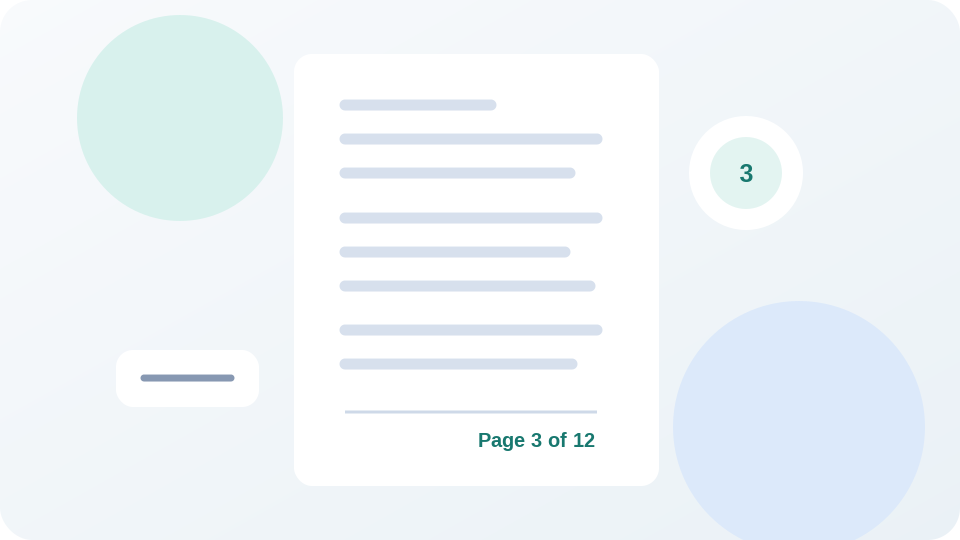
Page numbers make a report, handout or merged document easier to reference. Before adding them, decide whether the count should begin at the first page of the PDF or continue from a number you choose. This tool adds a Page X of Y footer to every page, so check whether that suits documents with covers or appendices.
Add a Page X of Y footer
- Open Add Page Numbers to PDF and select your file.
- Set the starting number. For a normal document, use 1; choose a different start when numbering should continue from another part.
- Run the tool and save the numbered copy.
- Open the result and check the first page, a middle page and the final page. Confirm the total and start number are what you intended.
Number a document with a cover or contents page
The tool numbers every page in the file. If you need the cover to remain unnumbered or printed page labels to differ from the physical PDF page count, plan that before running the tool. A starting number changes the displayed sequence but does not omit pages. Confirm the recipient’s numbering convention for formal submissions.
Number a merged PDF
First arrange the source files in the right order with Merge PDF, then add numbers to the combined copy so the footer reflects the whole document. Review the first and last pages of each section to make sure the sequence continues as intended.
Keep an unnumbered copy
Page numbers are added to the saved pages and may overlap content if a page has text near its bottom edge. Check pages with footnotes, tables or signatures. Keep the source PDF unchanged so you can adjust the numbering or create a fresh copy if needed.
Frequently asked questions
Can I start PDF page numbering at a number other than 1?
Yes. Set the starting number before running the tool, then verify the first and final labels.
Can I skip numbering the cover page?
This tool adds a footer to every page. It does not omit the cover from numbering; use a different workflow if the cover must remain unnumbered.
Does Page X of Y include all pages in a merged PDF?
Run page numbering after merging to label the combined document, then check the last page and each section boundary.